

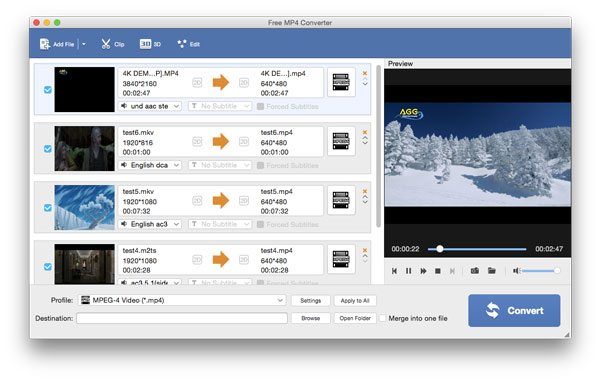
Free MP4 Converter can easily convert all popular video formats like AVI, WMV, MKV and FLV to MP4 and other popular video formats. Besides, it owns the specific function to convert audio files and extract audios like AAC, M4A, MP3 from video files with lossless sound quality. It's also convenient to trim video clips, merge several source files into one, rotate and flip videos, crop the picture frame of video, and set video effects (Brightness, Contrast, Saturation, Hue and Volume). What's more, you can add text or image watermark to the files.
Processor: Intel® processor
OS Supported: Mac OS X 10.5 or above
Hardware Requirements: 512MB RAM, Super VGA (800×600) resolution, 16-bit graphics card or higher
2. Set output format, video/audio encoding settings and output folder for the added files.
3. Click Convert button to start conversion.
1. Switch display mode
This program provides two display mode for the loaded file list: Report view and List view. Click the corresponding button on the top right corner of the main interface to switch the mode.
2. Set output video/audio parameters and save user-defined profile
Click Settings button to open the Settings window. For video, you can select Encoder, Frame Rate, Resolution, Aspect Ratio and Video Bitrate to convert your movie. For audio, you can select Encoder, Channels, Audio Bitrate and Sample Rate.
For Resolution setting, you can choose the pre-set Resolution from the right drop-down list. You can also directly input your own resolution as the form of "XXX*XXX".
You can customize the video and audio encoding settings and save them as your own profile. After you have chosen the encoding options, just click the Save as... button and name your profile, and then the profile will be saved in the User Defined list. You can use the customized profile next time by selecting it from the list.
3. Adjust video effect
Click Effect button to open the Effect editing window. You can adjust the Brightness, Contrast, Saturation, Hue and Volume for your video.
Deinterlacing: When you convert the interlaced video formats such as 720i, 1080i, for you to obtain better output videos, you can check the Deinterlacing function to avoid mosaics on the picture.
4. Get any time-length clip of video
Click Trim to open the Trim editing window.
You can set the exact begin and end time for your video episode or just drag the slider bar wherever you want. Another way is click Trim From to mark the begin point and click Trim To to mark the end point while playing file..
After you set trim time, the length of the captured clip will be shown in the Select Length box for your reference.
5. Crop your video
Click Crop to open the Crop editing window, then you can remove any unwanted areas from the video playing screen.
Keep Aspect Ratio: Choose Original, Crop area, 16:9, 4:3 or just set the position of Left, Right, Width and Height.
While check Keep Aspect Ratio, you can crop video under the condition of Keep Aspect Ratio as Original, Crop Area, 16:9 or 4:3. While uncheck Keep Aspect Ratio, you can crop video in any Aspect Ratio.
Zoom Mode: Define the size of active portion of output video. Choose Letterbox, medium, Pan & Scan and Full.
Zoom Mode can take effect only when the output Aspect Ratio is different from the one of source file.
After you crop your video and set the zoom mode, the result can be previewed in the Output Preview window simultaneously.
6. Add Watermark on video
You can add image or text for your video to your own preference.
7. Choose audio track and subtitle
This professional software allow you to choose the subtitle or audio track available in the source files for the output file.
8. Join your selected files
Use the Apple key to select two or more files that you need to join. Then click Merge button. After conversion, these selected files will be joined into one file.
9. Rotate and flip your videos (New)
Click the Rotate button and enter the rotate and flip interface. You can rotate or flip your videos to the right angle.
If you have any questions or need any assistance regarding our software, you can browse our webpage:
http://www.anymp4.com/app-store/contact.html
or contact us through our E-mail:
macsupport@anymp4.com